
Please note that the model display is not supported in the legacy 3D view.
Create Model Manually
You can manually create a model by selecting the building elements you want to create as a model then right click -> Create Model.
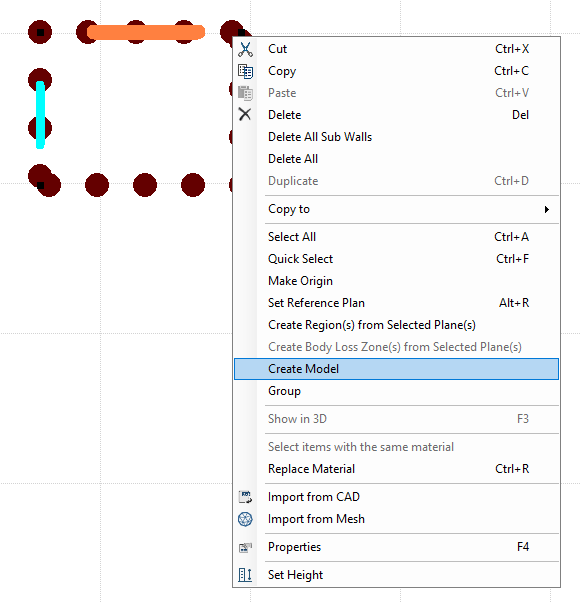
Figure 5-122: Create Model Manually
Create Model window will pop up where you can define:
-
Name. Model Name.
-
Tags. Model Tag, you can define more than one tag for a model and the model can be found under the tags you defined. If the tag already exists the model will automatically be included under the existing tag, if the tag is new, a new tag category will be created, and the model will be included under it.
-
Base point. Model base point, you can pick the base point on the model and X, Y, Z will be updated accordingly.
-
Scale. Model scale.
-
Rotation. Model Rotation angle.
-
Description. Model details.
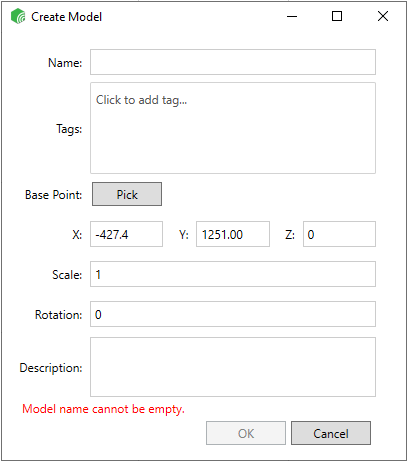
Figure 5-123 : Create Model Window
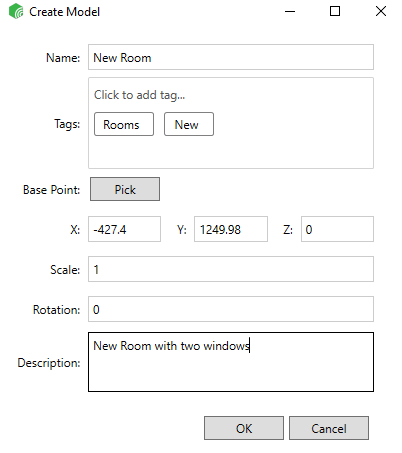
Figure 5-124: Fill in Model details
After you fill in the Model details, click OK , then the Model is created and added to the models library under the created tags.
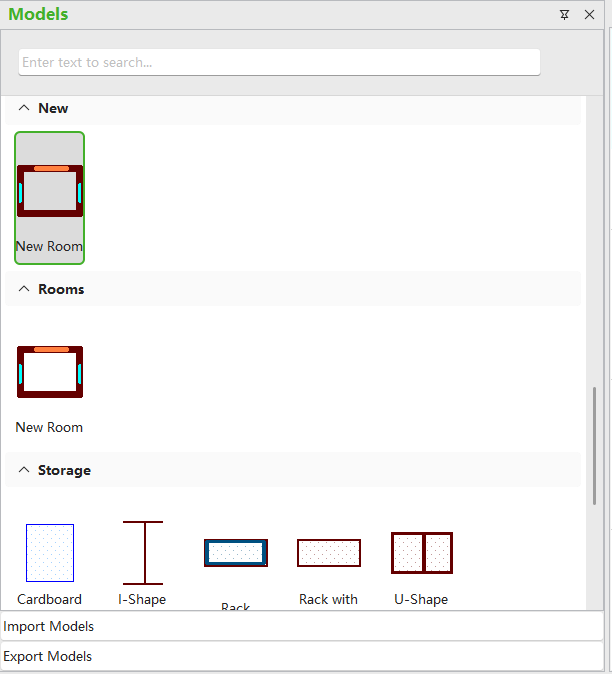
Figure 5-125: Model created and added to the Models library
You can select the Model to check the Properties from properties window
-
Height. Represent the height of the base point of the model
-
Lock. Check the box to lock the model
-
Rotation. Set the rotation angle for the model
-
Scale. Set the scale of the model
-
Material. Shows the model materials
-
Location. Represents the location of the model
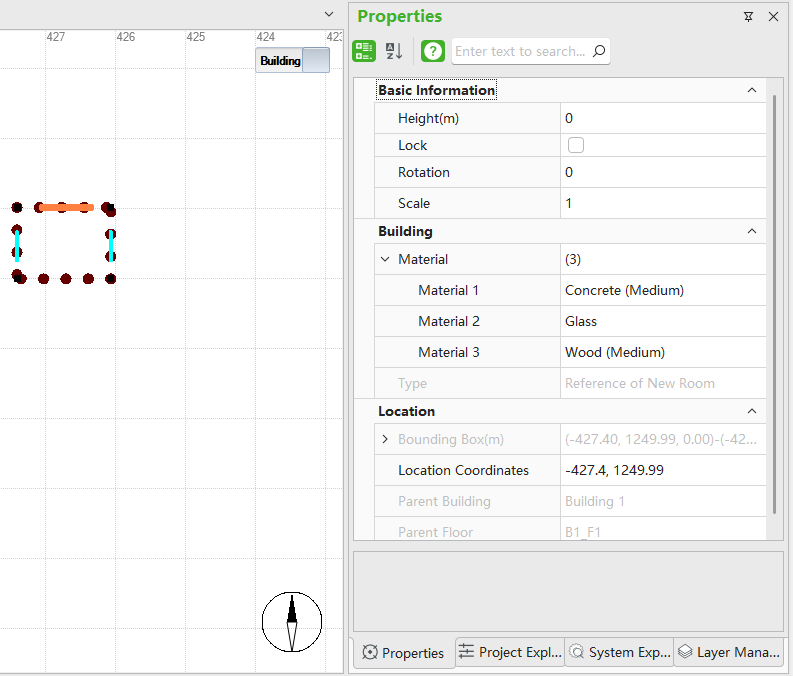 Figure 5-126: Model Properties window
You can copy, paste, select this type, set height and mirror the model.
Also Quick select function is supported for models. Right click -> Quick select
and the Quick select window will pop up where you can adjust the filters and select the required models. Set the Object type as Reference and Attribute as Type, then you can choose the Model from the Value drop down list.
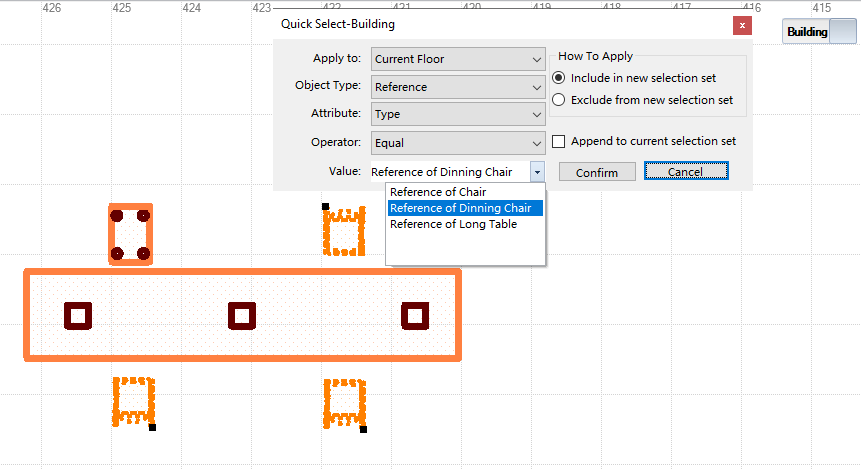 Figure 5-127: Quick Select for Model